 Vellum Help
Previewing Your Book
Vellum’s live Preview — shown on the right side of the main window — allows you to see immediately how your book will appear on a range of devices.
Changing Pages and Chapters
The Preview will default to the first page of the current chapter. To change pages, use the page turn buttons that appear when you move your mouse to the left or right side of the pane.
To change the chapter you are previewing, use the navigation controls in the upper-right corner of the Preview:
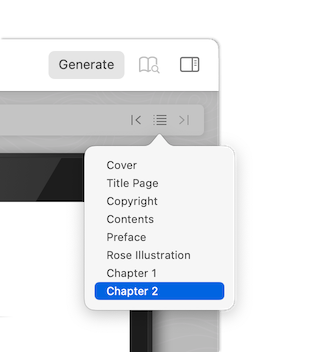
The arrow buttons switch the Preview to the previous or next chapter. The Table of Contents button in the middle allows you to choose a specific chapter to preview.
Selecting a Device
Use the Device popup to preview using a different ebook device, or to preview the print edition of your book:
Changing Device Settings
You can use the Device Settings menu to see how your ebook will appear when a reader changes settings on their device, like increasing font size or switching to Sepia mode.
Note: The settings you change here only guide the Preview. They do not at all affect the book you create.
Draft and Proof Modes
When previewing the print edition of your book, the Device Settings menu allows you to switch between Draft and Proof modes.
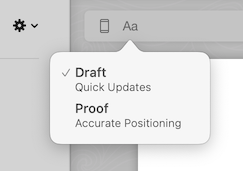
Draft mode is optimized for speed, and gives you a good idea of what your text will look like. It does not include all of the Automatic Layout features that Vellum employs to generate your final PDF.
To preview the final version of your print edition, select Proof mode in the settings popover.
Since Proof mode can be significantly slower than Draft mode, we recommend only using it to inspect layout, and switching back to Draft mode before making any changes to your book.